Cisco Rooms are designed to facilitate presentations and video conferencing using advanced in-room technology. Presenters can connect to a Cisco Room via USB-C cable or by wirelessly displaying content from their laptop.
This guide provides detailed instructions for using Cisco Rooms. Contact your onsite support team if you require further assistance using a Cisco Room.
What is a Cisco room?
A Cisco Room Kit includes the following features to support your meetings and presentations:
- Touchscreen Control Panel: Manage room functions like content sharing, volume, and device setup.
- Projector & Screen: Display your presentation and/or view virtual attendees.
- Speakers: High-quality sound output for meetings and presentations.
- Microphones: Optimized for clear audio input.
- Camera: Supports video conferencing with adjustable controls.
How do I turn on a Cisco room?
In a Conference or Study Room, tap the touchscreen control panel to wake the displays if they do not wake automatically.
In a Classroom, tap the touchscreen control panel to wake the display, then use the Room Control button on the podium touchscreen to power on the room technology:
-
Tap the Room Control button on the classroom podium touchscreen.
-
A new screen will appear that allows you to control the projector and drop down screen. Options include:
- Power On/Off: Turns the projector and screen on or off.
- Screen Up/Down: Raises or lowers the projector screen.
- Video Mute On/Off: Disables or enables content sharing.
Note: Use Video Mute to temporarily block content while accessing sensitive information like email.
How do I present in a Cisco room?
There are two ways to present from a Cisco Room: through a wired USB-C connection, or through wireless casting. This section explains each method in turn.
Please note, third-party security programs, especially firewalls, can interfere with a laptop's ability to use wireless casting. Contact your onsite support team if you need assistance with temporarily disabling these security features.
How do I present using the in-room cable (USB-C)?
- Locate the USB-C cable on the podium or table.
- Plug the USB-C cable into your device.
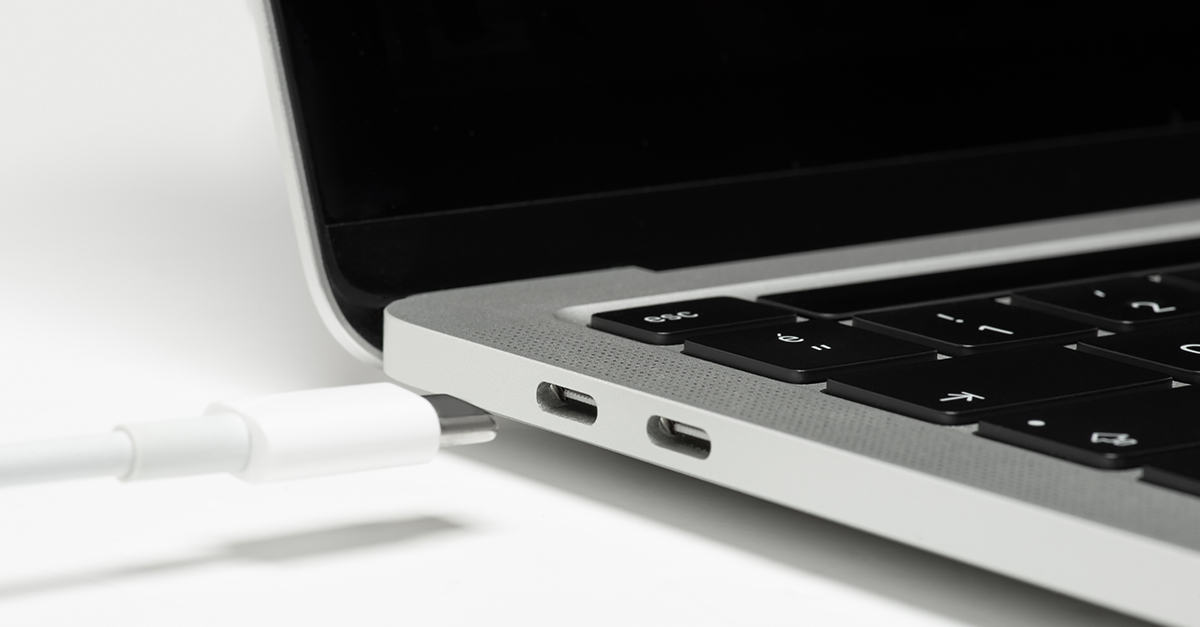
- The display(s) will automatically show your content.
-
Your device will automatically connect to the in-room camera, speakers, and microphone.
Note: You can extend your laptop display to use one screen for notes while presenting.
How do I present wirelessly from Windows or Android devices?
- Connect to Wi-Fi.
- Start casting on your device:
- For Windows, press
Win + K. - For Android, tap the casting icon (location varies by device).
- For Windows, press
- Select the room from the list of devices.
- Enter the 4-digit code displayed on the screen.
- To stop sharing, click Stop Share on your device or the in-room tablet.
How do I present wirelessly from iOS devices?
- Connect to Wi-Fi.
- Tap the AirPlay button on your device.
- Select the room from the list of devices.
- Enter the 4-digit code displayed on the screen.
- To stop sharing, click Stop Share on your device or the in-room tablet.
How do I host or join a meeting in a Cisco room?
Users can host or join a meeting in two ways: 1) by connecting a laptop via USB-C, or 2) by using the Zoom or Microsoft Teams buttons on the touchscreen panel. Instructions below:
How do I host or join a meeting using the in-room cable?
- Plug the USB-C cable into your laptop.
- Launch your video conferencing application (Zoom, Teams, etc.).
- Select the in-room Cisco camera for video.
- Ensure the microphone and speakers are set to the in-room Cisco devices.
- Host or join your meeting as you normally would.
How do I join a Zoom meeting without a laptop?
-
Tap the Zoom icon on the Cisco tablet.
-
Enter the meeting ID and passcode.
-
(For hosts) Toggle the "I'm the host" radio button and enter your Zoom Host Key.
- To find your Zoom host key, first access the Zoom web portal and log in with your school credentials if necessary.
-
Make sure your profile is highlighted, then scroll down to the "Meeting" heading to find your Host Key. Press the eyeball icon to reveal your Host Key.
-
Tap Join.
- Use the Cisco tablet to manage Zoom meeting controls, such as muting participants or ending the meeting.
How do I join a Teams meeting without a laptop?
- Tap the Teams icon on the Cisco tablet.
- Enter the meeting ID and passcode.
- Tap Join.
Note: Teams meetings can only be joined from the Cisco tablet. They cannot be launched.
How do I control the camera(s)?
In classrooms
- When in a meeting or hosting a meeting from your laptop tap the Camera button on the tablet.
- Select a mode:
- Manual: Adjust the camera using presets or controls for zoom, pan, and tilt.
-
Presenter: Enable Presenter tracking that follows a presenter in the front of the classroom. Activate it by standing behind the podium and clicking the Presenter option. Tracking will automatically start and will follow the presenter within the designated stage area (from podium to door).
Note: If tracking is lost, return to the podium and press Presenter again.
In conference rooms and study rooms
- When in a meeting, or hosting a meeting from your laptop, tap the Camera button on the tablet.
- Choose a mode:
- Group: The camera adjusts to show everyone.
- Frames: The camera will zoom and show people individually or in smaller groups.
- Speaker: The camera will follow the person speaking.
- Group and Speaker: The camera will capture the whole room as well as the active speaker.
-
Manual: Adjust the camera using presets or controls for zoom, pan, and tilt.
How do I show the in-room camera on the screen?
Self view allows you to show your in room camera on the screen and move where the display in shown during a meeting.
- Tap Camera
- Tap Self View.
- Toggle to Show selfview or untoggle to hide selfview.
- Use the grid to move the self-view position.