In this article
Learn how to efficiently recover deleted email items using Veeam. This guide walks you through the filtering and selection process to ensure your data is restored quickly and accurately.
1. Navigate to https://cloud.veeam.com/overview
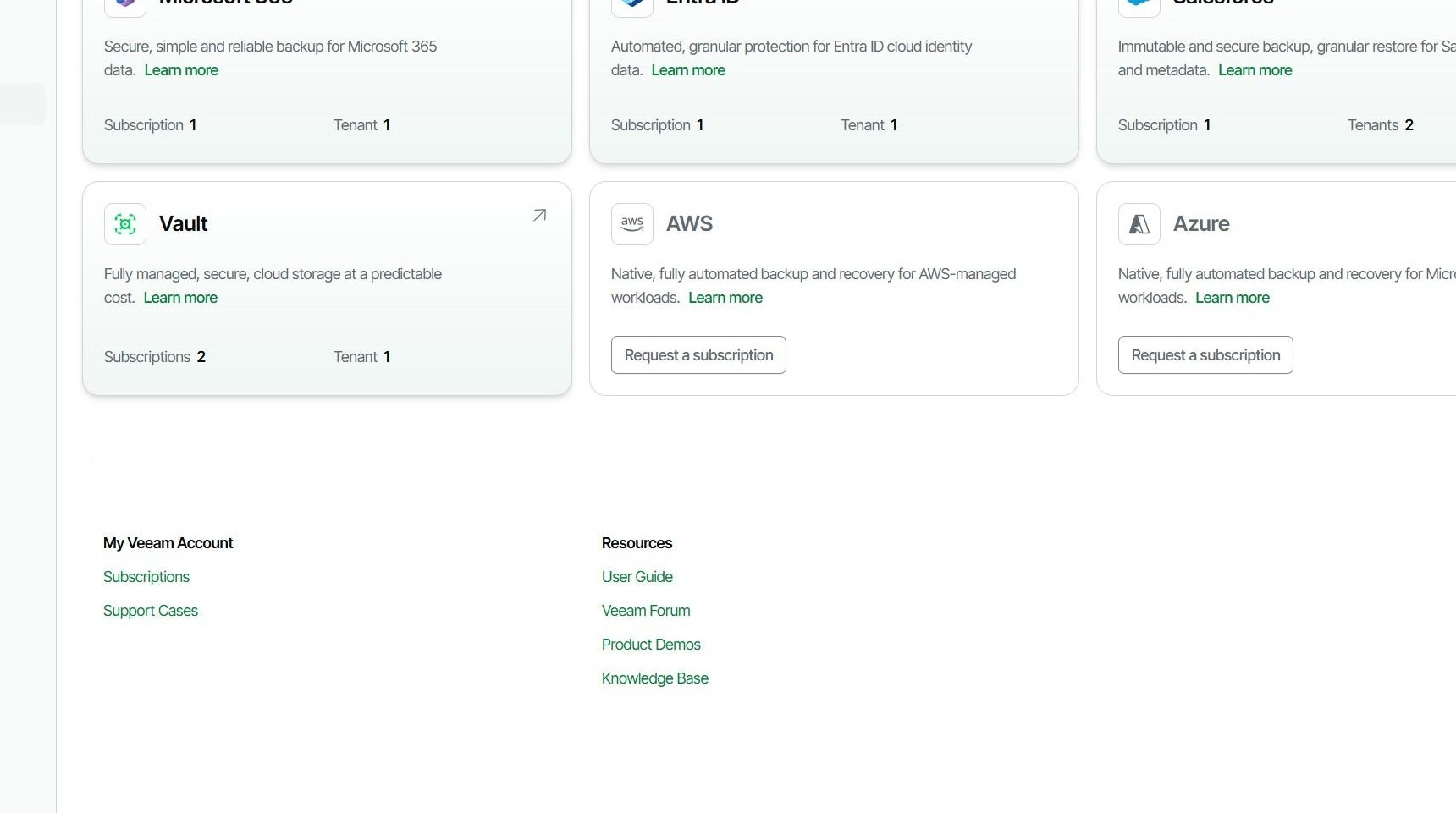
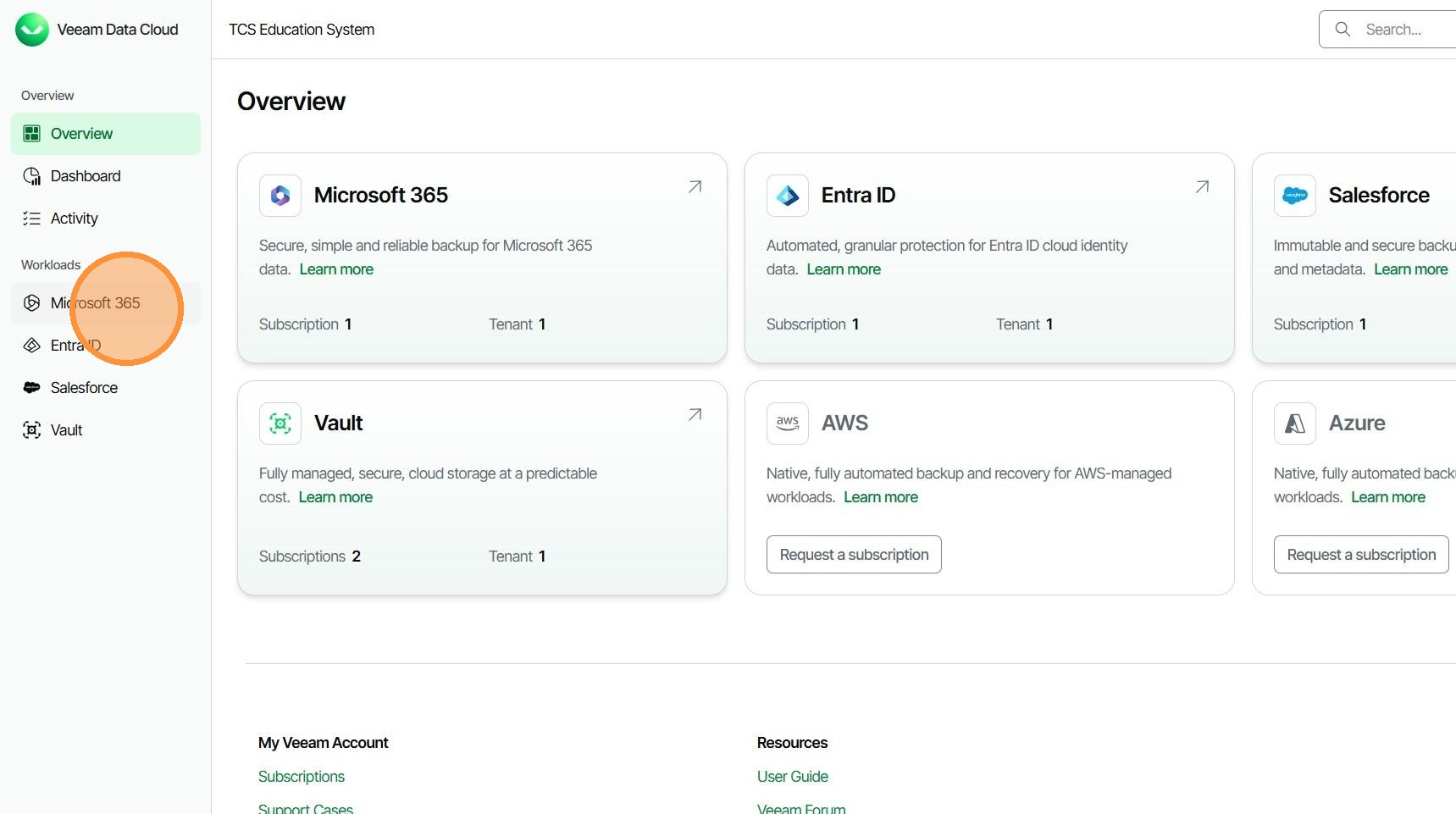
2. Click "Microsoft 365"
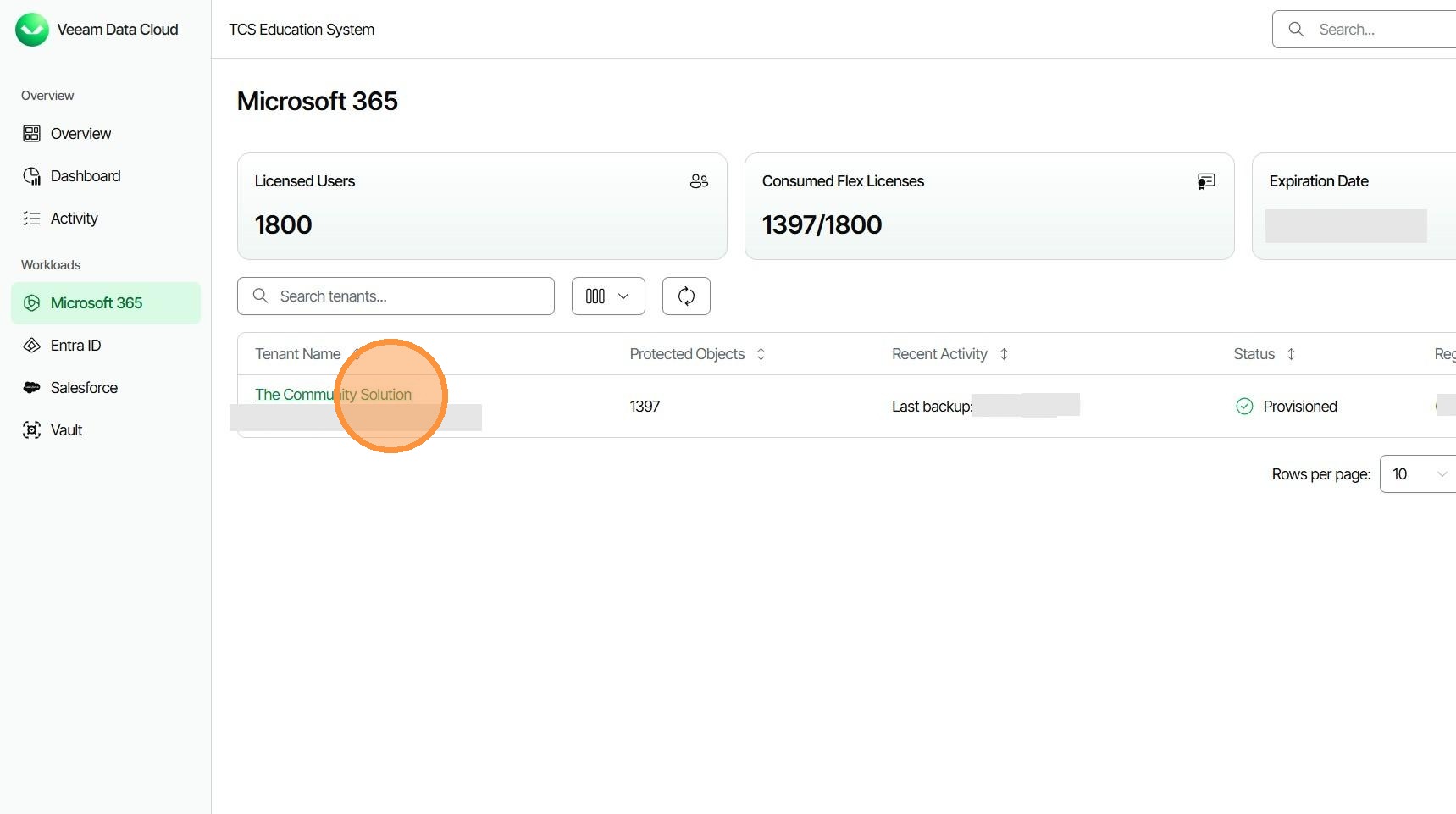
3. Click "The Community Solution"
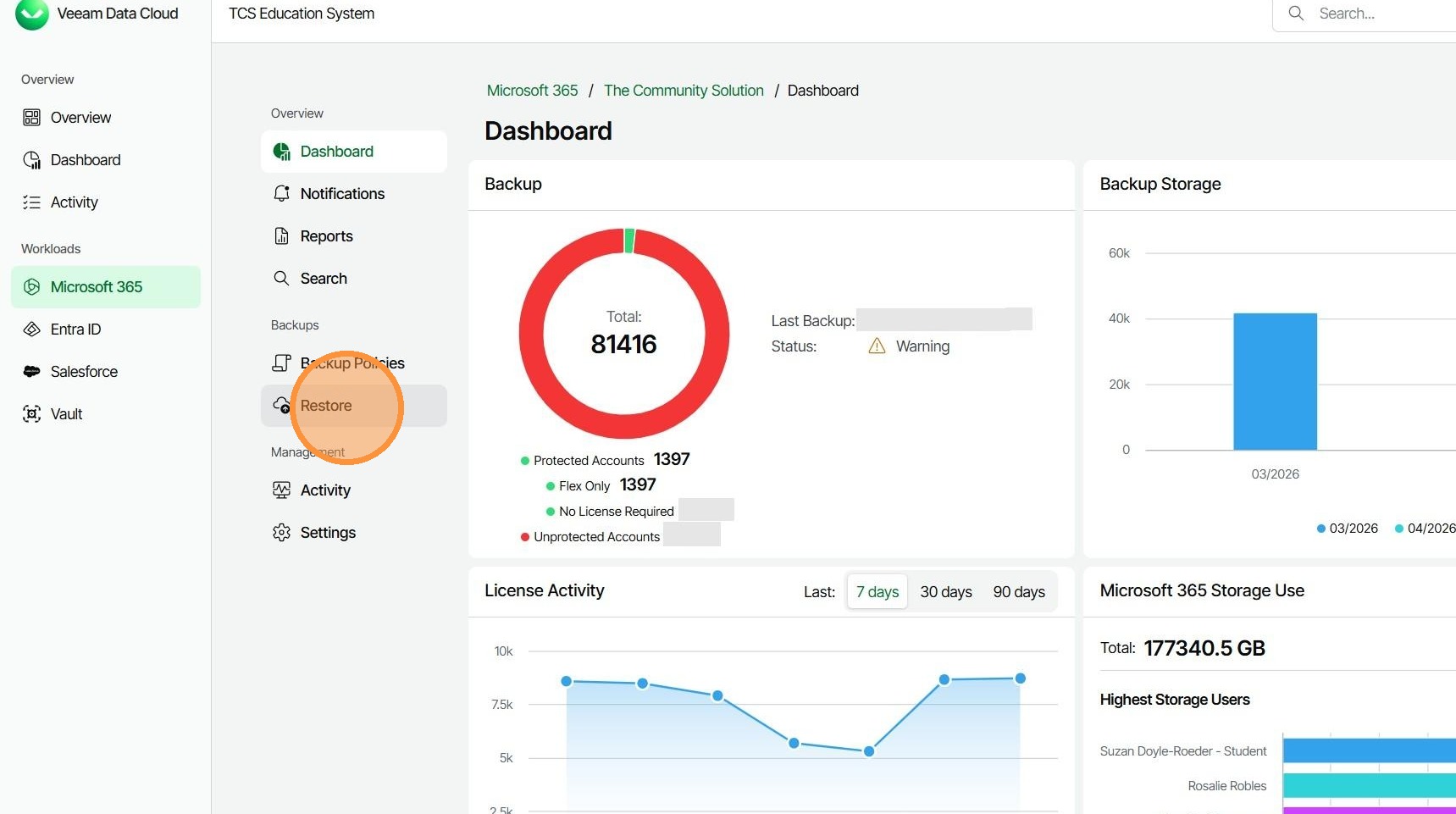
4. Click "Restore"
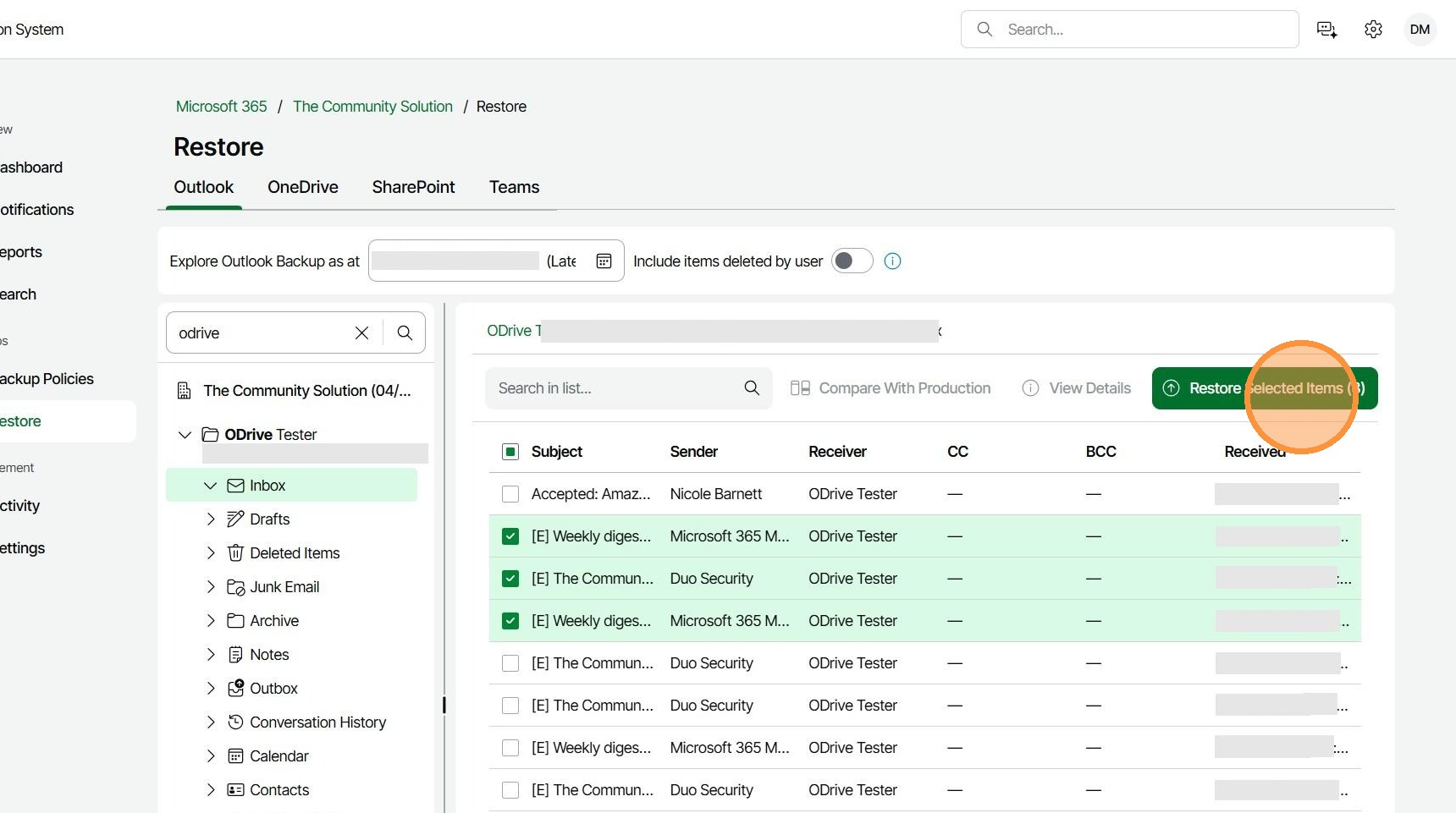
5. Click the "Filter" field and type the name of the mailbox.
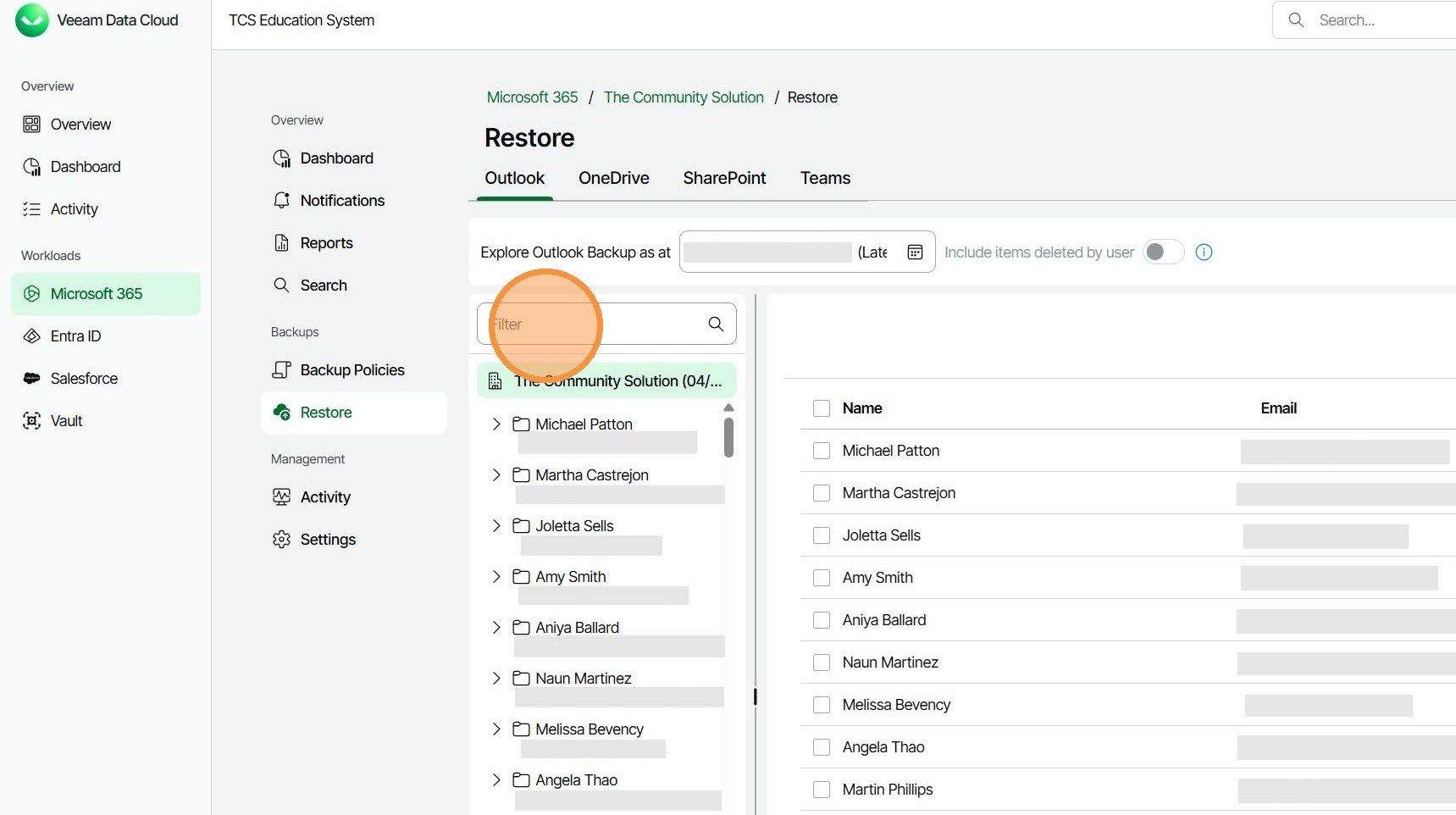
6. Click the arrow to the left of the mailbox name.
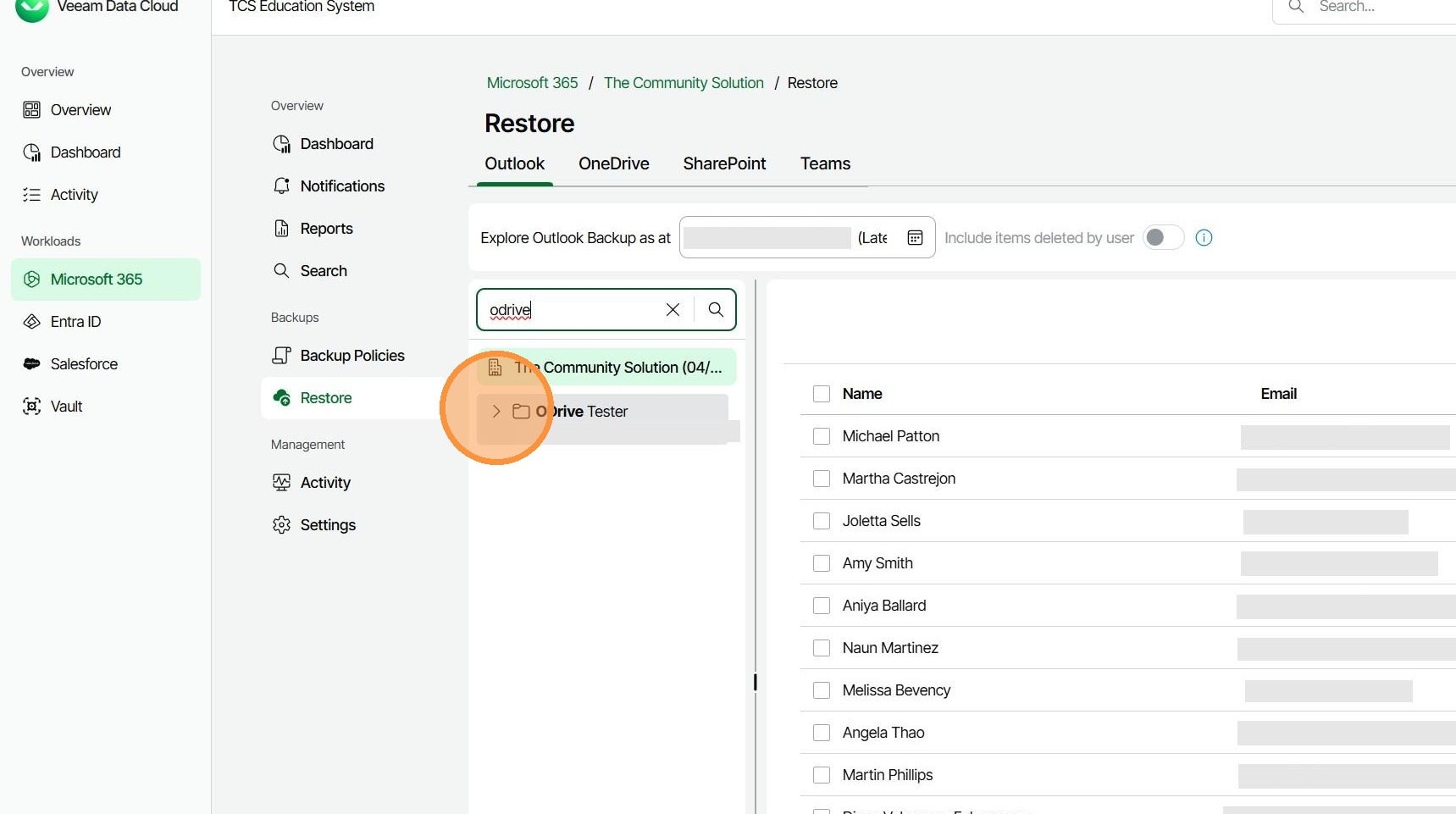
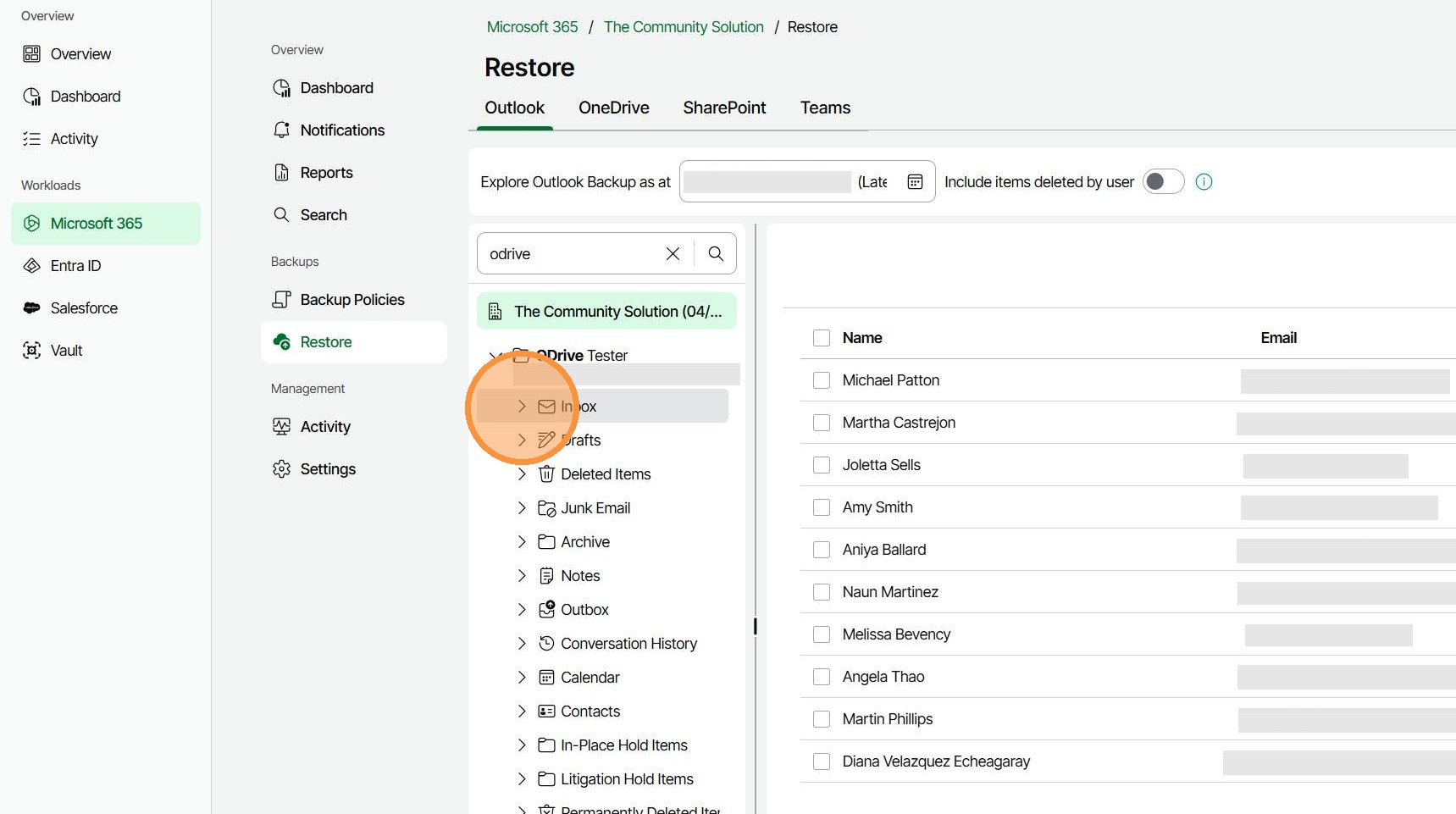
7. A dropdown should show all folders in the mailbox. Choose the appropriate folder to restore the email from.
8. Find the emails you want to restore and select the box next to them.
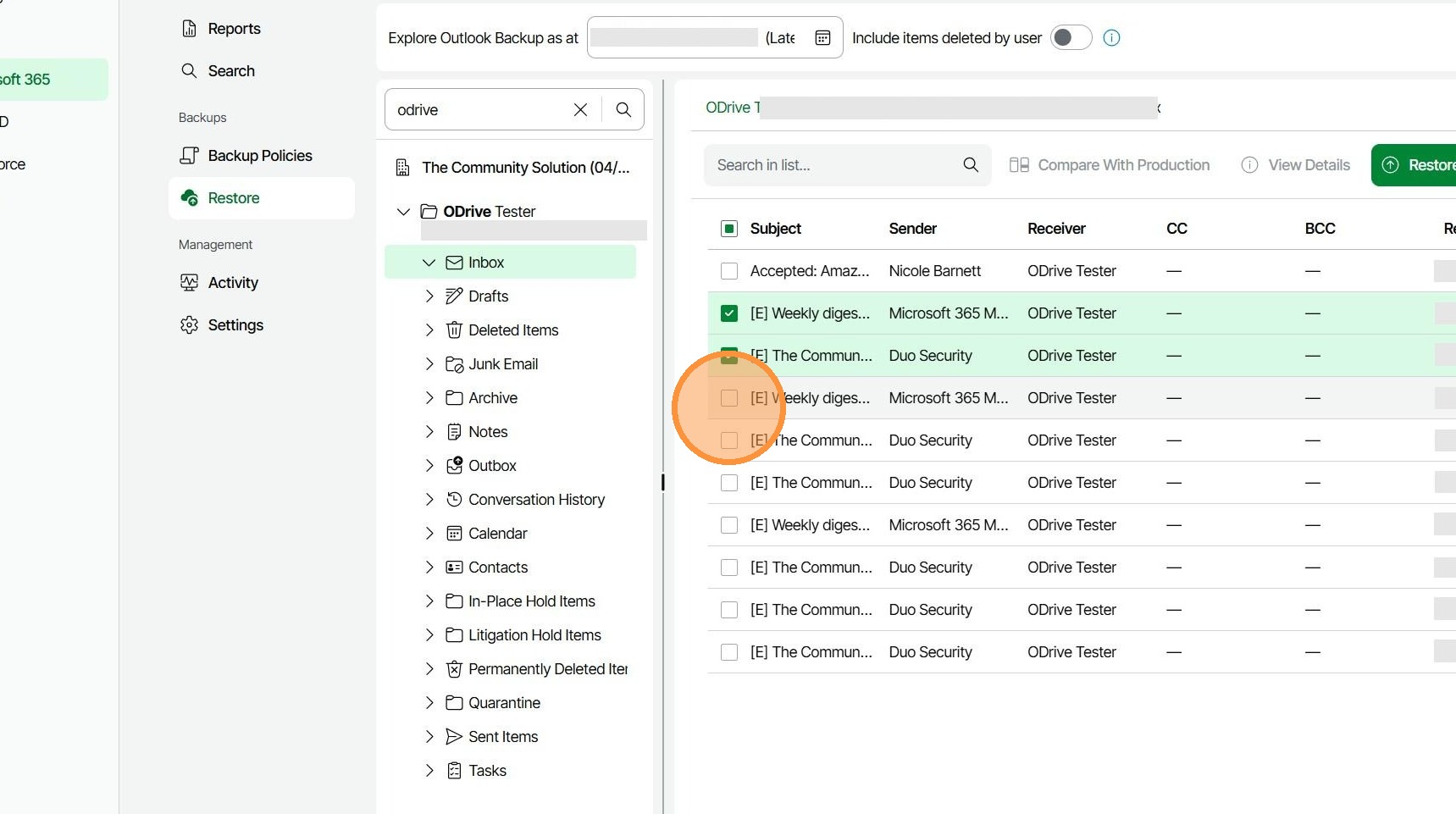
9. Click "Restore Selected Items (3)"
10. Click "Restore"
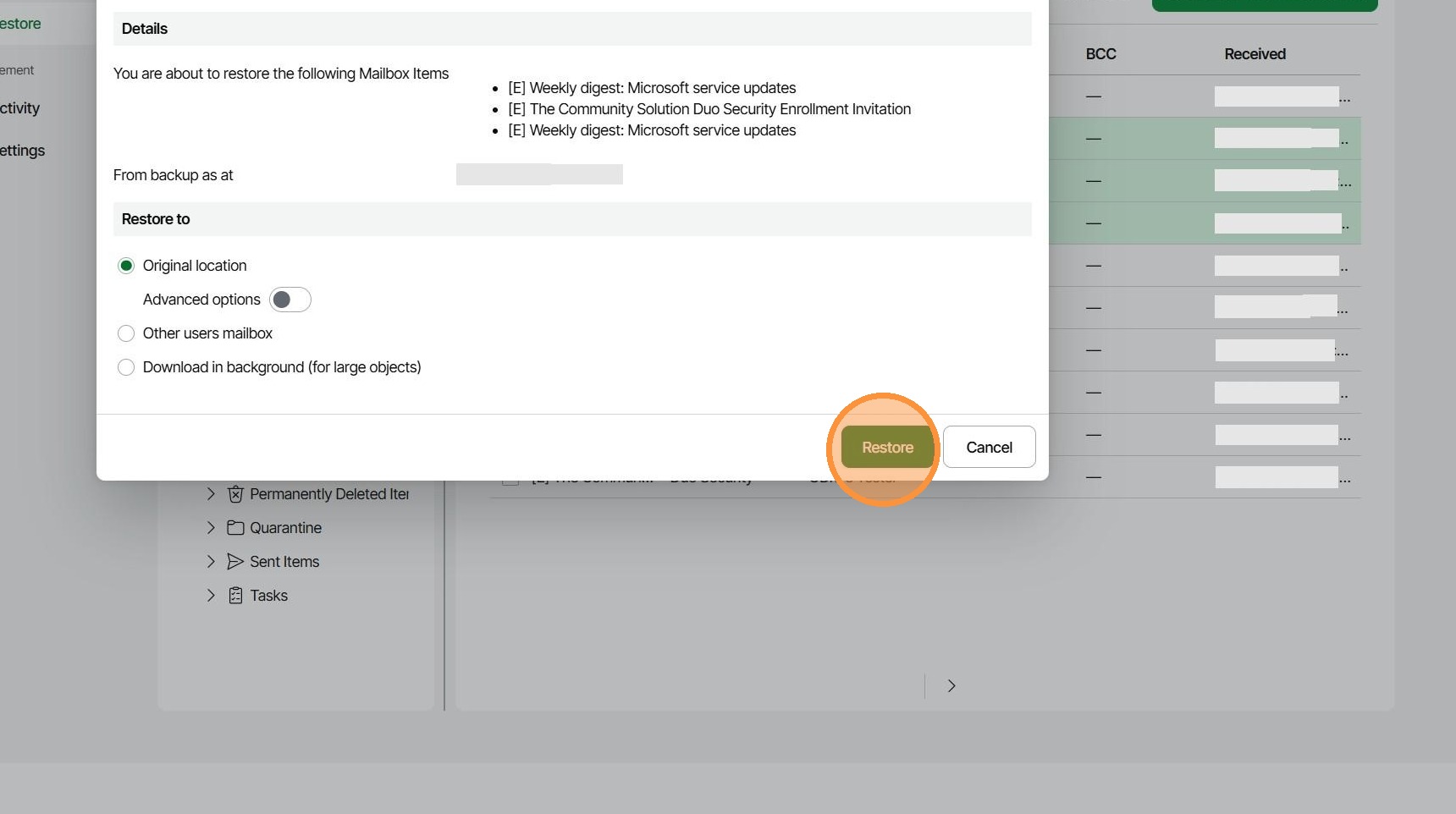
11. The emails should appear in the users mailbox again in the same folder as before.
Made with Scribe